Lesson 8: Accessing onedrive/sharepoint files via Globus
In this lesson we will:
- locate the OneDrive collection
- inspect the contents of your personal OneDrive with the file manager
- bookmark the collection for later
- copy files to the HPC scratch folder
- explore SharePoint folders
Once logged in, clicking in the search area under the File Manager section will allow you to search for a collection by name.
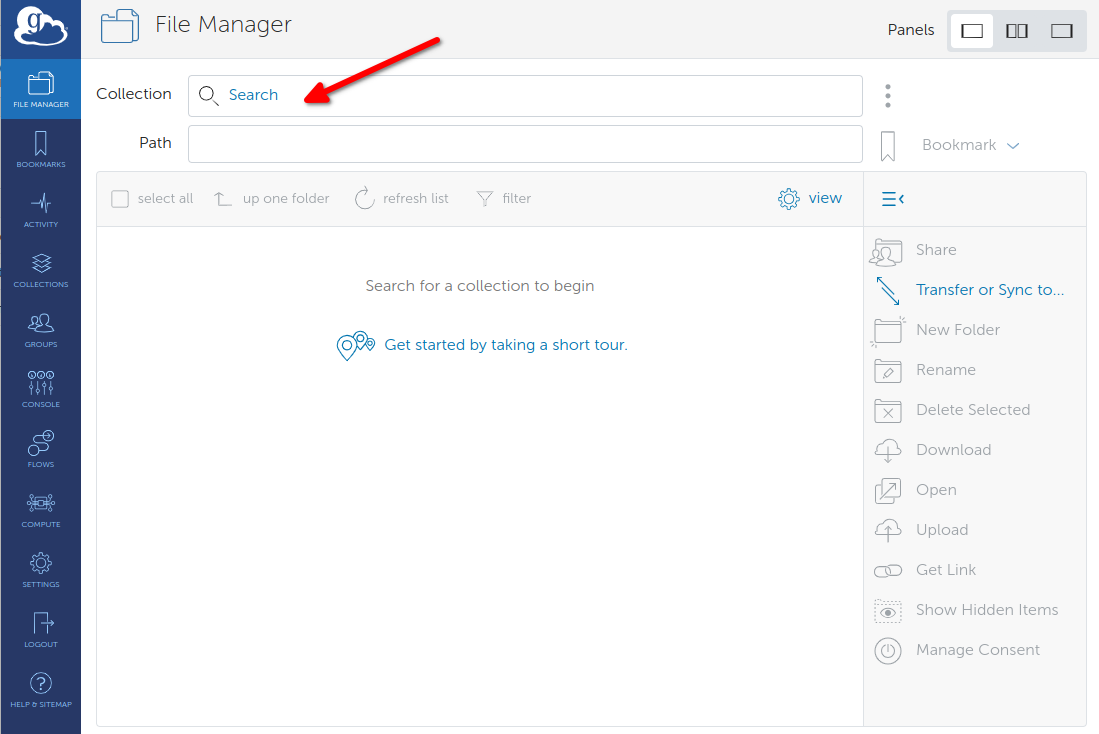
Enter c2f935b5-5c30-4abf-a7b5-f1d21bfb3eba which is the unique collection ID for the "OneDrive Access For QMUL" collection.
Globus will list the search results and you should see the OneDrive collection as below:
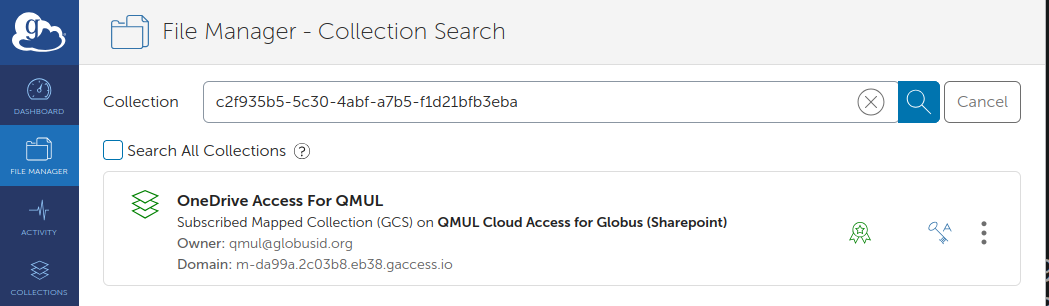
Click on the collection. If this is the first time accessing the collection, you will get additional consent screens. Clicking "Continue" will allow Globus to access that data with your account.
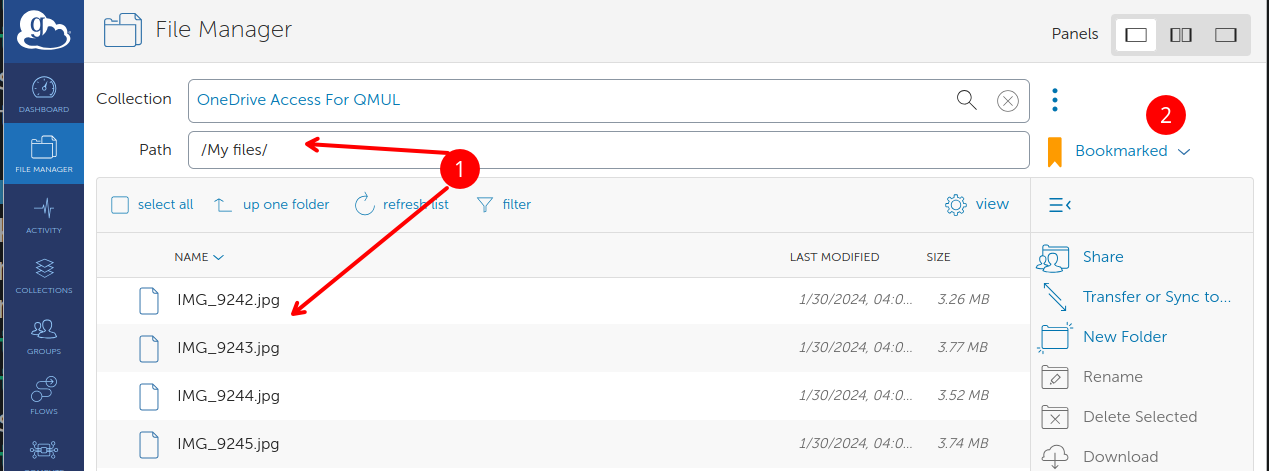
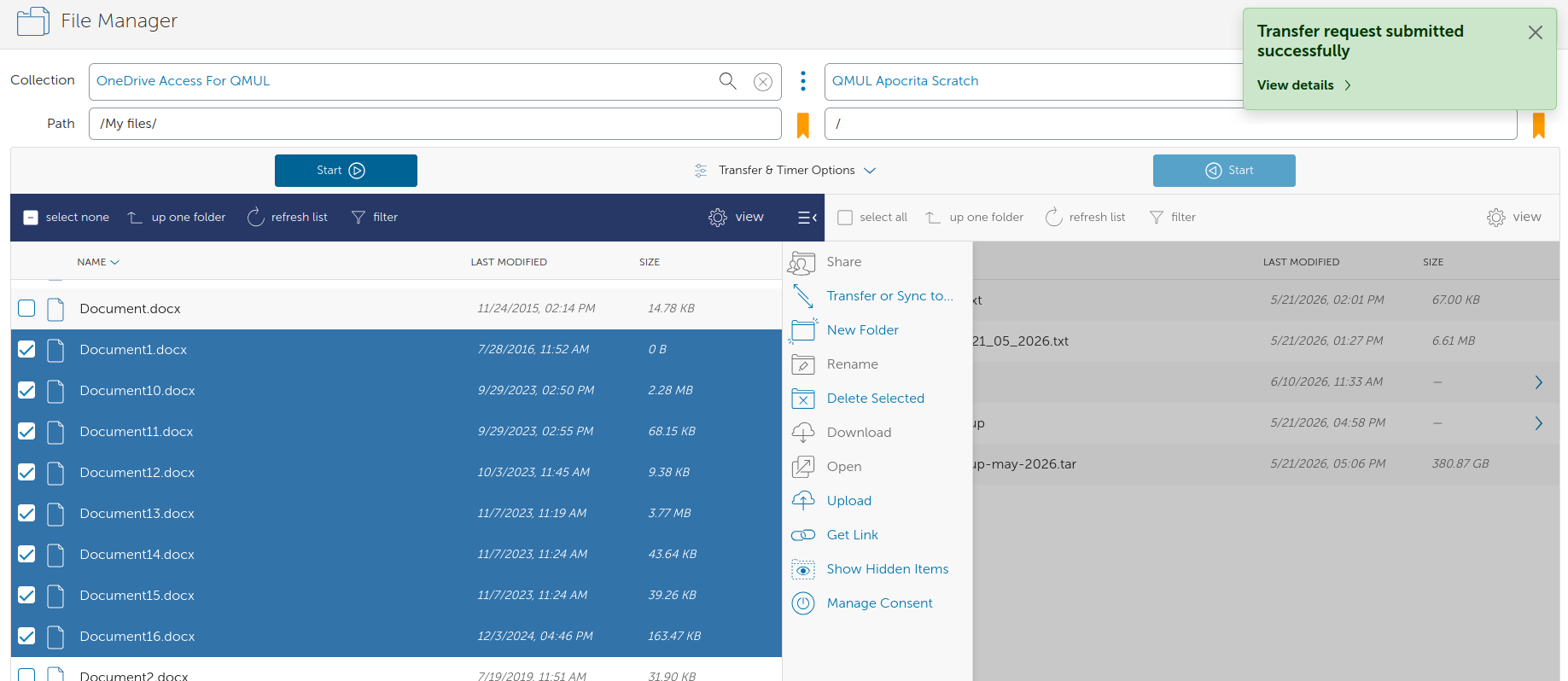
Globus will connect to the collection and display the default directory which is the top level of your OneDrive directory, as marked by (1) in the image below. It is recommended that you bookmark this collection for easy access, using the bookmark button (2) and providing a suitable name. In this example the bookmark is yellow, which means it has already been added.
Transfer data to another Globus collection
From here, you can copy data in and out of your OneDrive folder. In the example below, we are copying a selection of files from OneDrive to the Scratch folder on the HPC cluster. Alternatively you may wish to download to your local machine or another globus destination.
Don't put small files directly into the Low Tier archive
Note that directly copying small files from OneDrive to the Low Tier storage archive is not permitted, and batches of small files will require prior curation into larger blocks of data, typically around 500GB to 15TB in size. One such way to achieve this would be to bulk copy files into the scratch folder and then perform tar/zip tasks to collate the data. You can read more about the archive service here.
SharePoint folders
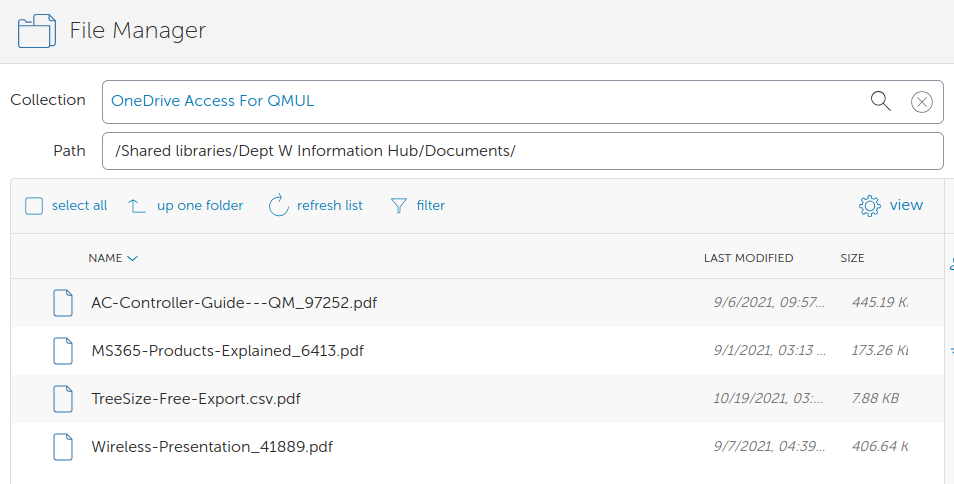
In addition to your personal OneDrive folder using /My_files, you can access documents stored in SharePoint.
Click "up one folder" and you will see "My files" and "Shared libraries".
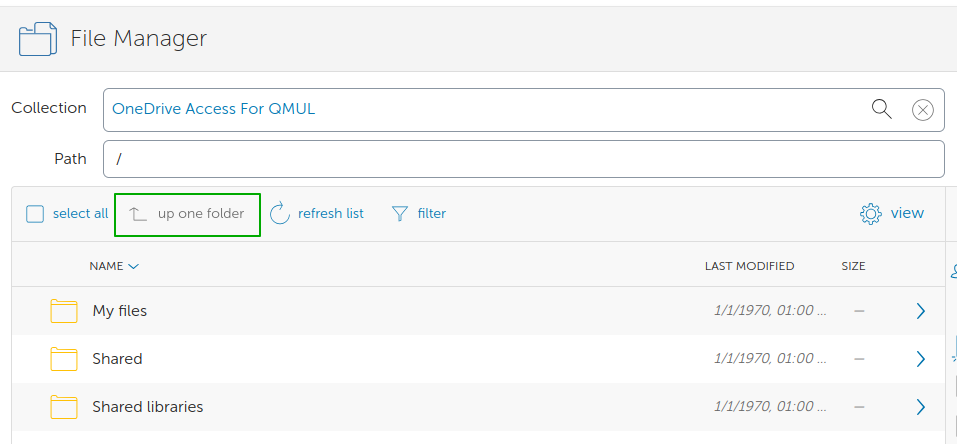
Entering the "Shared libraries" folder will provide a list of SharePoint sites that you have access to.
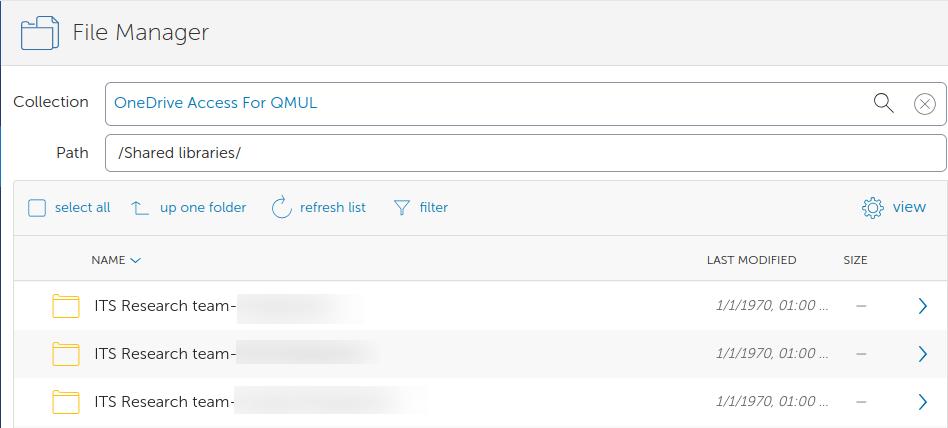
You can browse directories and transfer documents stored in the SharePoint sites in the same way as your personal OneDrive folder.